Introductory Video Tutorial
transcript
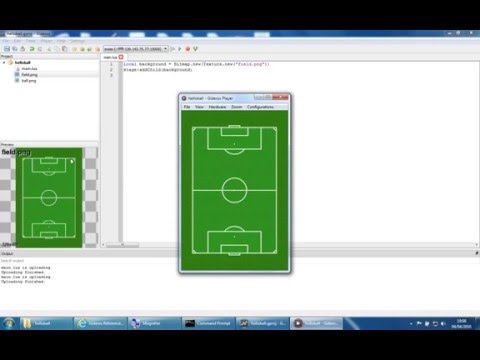
hello and welcome to this very first Gideros video tutorial I want to talk to you about Gideros and its various components, how to install the software, where the various parts of it live and so on. I will write a very first very simple demo app if you don't already know Gideros is an open-source 2d game engine and it's free and open source and allows you to write games for a variety of different operating systems including Android, iOS, desktop, Windows Phone and you can also export to html5. The first thing your gonna need to do is to install Gideros which of course is completely free to Go to giderosmobile.com website and you can go and download Gideros which is available for either Windows or Mac so just click here and download the latest version of Gideros which is currently 2015.12 and just click on the installer and follow the instructions and install at your start menu or the equivalent for Mac OS X. When you install Gideros it appears in your start menu I want to talk a bit about what these various things are within the group first day there are two forms of documentation in the form of HTML files called getting started and the reference man you are getting started documentation is what we're going to go through today in this tutorial. Basically tells you how to create your first project add code to it and so on and add assets and our aim today is to go through and write a very simple app of this sort which is just a ball bouncing on the screen the other important documentation that's within the installation group of Gideros is the reference manual both of these documents are available online as well on the Gideros website. The reference manual tells you how every single Gideros API works and there are many of them but as you become more experienced with Gideros you'll come back to this reference manual and you'll figure out what the exact parameters of each and every one of the API's is what its inputs are what returned value it has and what it does so everything is documented in detail here but to begin with you want to start with more of a tutorial introduction to see the basic concepts which is what we're going to do today what else in the group and start menu there are two very simple programs called Gideros font creator and Gideros texture packer as I say these are very simple program so kind of a auxilliary programs that you will use occasionally so the text packer lets you take all these bitmaps you have a load of bit maps you don't want to import them all as different files within the Gideros game rather you want to put them all into a certain texture atlas which is like a big bitmap which contains smaller a bitmaps this is more memory efficient and more convenient to program you see these programs are very simple I won't go into them today but I just want you to be aware that they exist but they're very much simpler programs that you use to help you with small aspects of Gideros programming the other one is Font Creator. You import a TrueType TrueType font TTF font and you can export a bitmap font these days Gideros can actually deal with TrueType fonts directly so you may want to you may not need to use this font creator cuz they can do with TrueType fonts directly but you can also import bitmap fonts and if you want to bitmap fonts you can create them this way so I won't go into these two simple programs today I'm going to focus more Gideros studio itself which is by far the most important program out of all them so that's all there is to it there's a license manager but you don't need to use it at all because Gideros is now completely free and open source and you never need a license to run it Gideros Player you can launch from here but actually you normally would launch it within Gideros Studio let's do that let's launch Gideros Studio and how do you launch Gideros Player you launch it from here . Start Gideros Player from this icon I'll tell you about Gideros Player in a minute first of all let's have a look at what Gideros studio shows you what is the first starts up you can see all the recent projects have you been working on you can also see a lot of example projects you can just click on these or other double click on them to load the example project I'm not going to look through the example projects today because I wanted instead to type our own project from scratch so I want to start with a blank sheet and type our own project but it's very useful to look through all these different example projects which are divided into various groups graphics 3d graphics shaders audio hardware networking physics: Gideros has a built in physics engine so you don't have to write that you can have the game similar to Angry Birds you can write it very easily within Gideros without writing your own physics related code so these are all different example projects the other things you see on this menu this start screen rather getting started will take you again to the Getting Started documentation which I've shown you and which were essentially working through today and the reference manuals also available again now we want to create a new project today starting new projects and create a very simple project from scratch you can either use this button or you can use File menu let's use the File menu file new project ok browse let's browse to where we want to store our new project of course it must be a directory that you have access to. I'm going to store my new project in d:\gideros\examples so because create folder for project selected will actually create a new folder so within d:\gideros\examples it will create a folder I'm going to call my project helloball because I'm going to create a ball and make it bounce around on the screen so create a new directory called helloball and within that directory within that directory it will create a project called helloball.gproj this is the Gideros project file and click OK and zoom out of that and you can see that we have an empty project here that's what it looks like I need to do now is out some files to the project which is currently completely empty and doesn't do anything to do that I want to borrow some files from an existing example project so I go back to the start menu go to Gideros and choose examples you can see I have all the files in this examples some of which have already shown you. These examples that are available right at the beginning when you go to Start screen of Gideros. I'm going to go to the graphics group and go to jumping ball. I'm now gonna just grab and borrow two graphics from this example project which I'm going to copy across so now within my folder Gideros/examples/helloball where I'm creating my new project you can see it it is a Gideros project because I have a gproj file here and also have two different bitmaps I go to Gideros you can see it's not aware of these bitmaps yet in order for Gideros to be aware of the bitmaps and add them to the project I must manually add these bitmap files these PNG files to the project to do that I right click on the root of the project and choose Add existing files and then select both of my files because I want them both to be within this project and select Open so you can see project now consists of two files and I could actually left click on these files to get a brief overview in this preview window of the picture looks like I can also resize these various panels as you might expect and there is an output window down here as well ok now to make something happen to make some sort of app or game I need to add some code to the project Code in Gideros is written in a language called Lua now add a new file I'm going to add a Lua file traditionally the main program of a project will be called main.lua a larger project will consist of several Lua files which call each other but the entry point is typically the file called main.lua. Select that file it see main.lua now added to the project I double click on it I have an empty file which I can start to edit at this stage it may be useful to simply have a quick look at the .gproj file I'll just show you this though magic going on the .gproj file is just a text file I double click on it I can opened it and let's make sure I save the file before I do that the project has an asterisk meaning it hasn't saved what files are in it yet it. I need to use this the Save All command to save the project the project now knows that it has a different files within it let's try this again actually close this one down this is where I copied the files from a look at helloball.gproj you can see it has several files within it and it knows that there are several files associated with this project the project insist that just at these three files say there's nothing magical about this reproach file is just a simple text file and that's all there is to it a Gideros project. A Gideros project consists only of a .gproj file and whatever assets you've added to it Gideros does not generate hundreds of binary files all the time every time you click on something it doesn't auto generate any files except the .gproj files a simple text file and actually is very convenient when using version control When you use version control like Git or Github you want to share the project with other people work collaboratively it is very convenient the fact that Gideros doesn't automatically create binary files you can see what the .gproj file is commit it to Github you see what your main.lua is is it just a text file which you can edit yourself so Gideros has a very clean simple project structure alright let's let's start adding some code I have opened my main.lua file and I'm gonna write some code I'm gonna write a new variable called background and its background variable is going to be a bitmap to create a new bitmap I used the API Bitmap.new(). You can see the IDE is automatically completing this for me Bitmap.new takes a single argument which is a texture. how do I create a texture? well I need to use Texture.new() and that also takes a single argument actually there's another (optional) argument but I'm only gonna use one argument and a single argument it uses is the name of the bitmap file in this case I want my background to be my file field.png so now I've created a bitmap actually could have done this in two stages I coulda said texture=Texture.new "field.png" I could have done that and then I could have used that new variable to assign the bitmap so I create a bitmap from the texture that I've created already so you can do it like that there's nothing wrong with doing that but its generally considered simpler to do it all in one command which of course you can do so let me do that I put it back to how it was before so.... that create a bitmap bitmap as a visible object made out of bitmap data such as a PNG file thats then the entirety of my program so far to see the program running I must launch Gideos Player which I do from this icon. Gideros Player represents how your App will look when it's running on a mobile device or indeed on a desktop device so whatever device you're running on it on it gives you a preview of how the device will look when it's running. I now want to change this resolution to 320 x 480 resolution which is the resolution that iPhones used to be many years ago but it's kind of a standard resolution just start off with its kind of the default resolution people use but you can of course use different resolutions but I'm going to try a 320 by 480 resolution I gotta run my app on this screen which is 320 pixels wide and 480 pixels deep so here's my screen and this is just showing me what my Android device will look like on my iOS device on my iPad or my Windows Phone will look like whatever device it is this is what will appear on the screen of that device. Let's run it nothing happened have a blank screen the reason is that I haven't yet added my bitmap to the stage. The stage is a very important concept in Gideros the stage has a pre-existing variable which is a global variable global variable I can add things to it. What I'm gonna do now is I'm going to add a child to the stage and the child will be my background. Once I've added the background sprite to the stage it's a child of the stage and will be drawn on the screen everything that appears on the screen must be a child of the stage or indirectly a child so for example now that I've added the background my background can have children of its own so what I can do as I can group a whole load of Sprites together and rotate translate or scale them as a single entity and this allows me to build up more complex graphics but for now simply add the background directly to the stage now that I've done that I should be able to see the bitmap appear and so it does so I've got a simple app that consist of a single still picture which fills the entire screen it happens that my bitmap is 320 by 480 as I wanted to be at this point I should mention that there are many things I can do with my bitmap having generated it so background is a bitmap but there are many different methods I can use for it I can you set X to set its x-coordinate now you see I shifted the bitmap along -- shifted my bitmap to one side by setting its x-coordinate you notice when I made a change the code and ran it I simply have to press the play button again I don't need to recompile anything of course I can also set its y coordinate Let's set that to 50. notice when I start to type what I type of bracket for one of these methods it tells you what arguments it expects For sprites set the y-coordinate of the Sprite so whatever "y" is will be the y-coordinate of that Sprite If I run that again I can see that my sprite is positioned at 100 pixels along 50 pixels down so these are just two of the methods we have for Sprites now you might wonder what what point on this Sprite is actually being set when I said (100,50) you see that the top left corner of the sprite that's being set when I set it to (100, 50) I'm setting the top left corner but I can actually change that if I want it might be I want to control the central coordinate is more natural to me to control the central coordinate of the sprite If Iwant to do that I can set the anchor point of the Sprite so let's experiment with that... right now it takes two numbers both of which are between 0 and 1. If it's (0,0) that's the default that means when I set the position the Sprite it will be at the top left corner If I set it to be (0.5,0.5) it will set the central point let's have a look at that. So now I'm setting the central point 100 pixels along and 50 deep Now remember this whole screen is 320 x 480 so in Gideros I basically work directly in pixels you'll see in a moment that there's a bit of a sophisticated beyond that but basically I'm working in pixels directly when I draw my 2d objects on the screen there's another convenience function as well instead of using setX and setY I can also set position in a single go that is exactly the same thing is what it did a minute ago I set the position of the sprite 100 by 50 so these are just some of the methods that you have available for a sprite I said back background is a Sprite it's actually a Bitmap but Bitmaps inherit from Sprites so all Bitmaps have all the features that Sprites have and if you go to the the API manual reference manual you'll see all the different features that all the different methods that Sprites have. Sprite have lots of methods not surprising perhaps so we've already seen adding a child and we've seen some of the set API use so that we can set the x coordinate the y coordinate ok let's delete these as I want to leave my sprite at its default position namely at (0,0) and I want the anchor point to stay at the top left corner I'm not going to add another Sprite which is a ball. I want to add the ball to the screen and it's exactly the same process ... in this case I want the bitmap to be called ball.png one of my other bitmaps I have now created a new bitmap called ball again I have to add it to the stage to make it appear and again I'm gonna do it in exactly the same way let's see what that does so there's the ball and it's it's drawn on top of the stage on top of the background so you have to realize that the order you add things is important as I added the background first and then added the ball on top of that that's why the ball appears in front of the background I could reverse the order. If I add the ball first to the stage and then add the background than the ball will be drawn first and the background will be drawn on top of it which means we won't even see the ball so sometimes it's not convenient to add things you can add things in the order one them to appear like this and that's fine and sometimes it's more convenient to add things in a different order to change the order without having to have the commands in a certain order the way you do that you can there's another API called a addChildAt so let's say I've added the ball already I want to add the background behind the ball I can use addChildAt(background,1) which is saying the background should be in position one and that forces the ball forward into position 2 so the ball will be drawn on top of the background even my first command was ball and the second command was background I should still see something ok so you can do things in that order gonna put them back where they were but the point is you have various different options adding children to the stage or adding children to their parents Because every child could have children as well as the stage. The stage is just a special sort of Sprite but it actually acts like any other sprite so I'm going to add the background first and then the ball and that's my program. Now the next thing I want to do of course is to make this ball move and bounce around the screen to do this I'm going to create some new fields within this object called ball now the ball is what's called a Lua table and it was created using this factory function Bitmap.new we've already seen that ball has various methods associated with it like setX but as well as having various methods I can add new methods of my own or new fields of my own very easily so I could say.... What I'm doing here is I'm creating a new field called xdirection now xdirection has no meaning to Gideros. This won't cause the ball to move by itself it has two convenience function that I'm using for my own programming and notice how I can add things on the fly like this I can add new methods a new fields on the fly without any special type of declarations. Let's go ahead and do ball.ydirection and these directions will just dictate whether the ball moving in this case to the right or left and in this case up or down so we started moving to the right and down some other information is the speed of the ball .... set this to be 2.5 this is really just a constant cuz it'll never change the speed in the x-direction is 2.5 and the speed in the Y direction I'm gonna take take it to be four point three and you might be worth noting at this stage that Lua only has one type of number doesn't have integers vs floats like that or doubles it just has numbers so this number you know it happens to be an integer (1) but actually it's just a number so the primitives in in Lua are numbers like 4.3 strings I could easily set xspeed to be a string and you can have true and false as well and this is important thing called nil which turns out quite a lot so whatever somethings invalid it will be nil so you do do to check for the presence of nil if you're running function against the wrong value or for example if you open a file that doesn't exist it will return nil so nil is different from anything else roughly the same as false so these are the different primitives you get in in Lua so what we've done is we've we've set these new fields to be different values which is going to be very useful when writing the code to do with moving things around now to make the ball actually move we need to write a function I'm gonna call this function on enter frame that's how you write functions within Lua. Notice we don't have to specify the return value function or anything like that nothing has to be explicitly typed in Lua. A function ends with the end statement so the body this function what's going to happen is this folks is going to be called every 60th of a second to make the ball move so it will have to do is it will have to interrogate the current position of the ball update that position and set the new position of the ball every time it's called I'm going to create some new variables called X and Y. X will be set equal to getX so ball:getX returns the current X-value of the ball. So now I've got the coordinates of the ball now I'm gonna increase these quarters every frame ... .. so you multiply these two together is just equal to 2.5 the ball's gonna advance 2.5 pixels every time the function is called Every frame it will advance 2.5 pixels in the x-direction and similarly the y-coordinate of the ball is also going to advance in the same sort of way so if you try running that what will happen I see ok the ball hasn't moved it just stays where it is so why is that well the reason is that this on enter frame it doesn't have any special meaning to Gideros. Gideros doesn't know about the function on onter frame as having any special meaning we have to register this function as a as a function that Gideros needs to call every sixtieth of a second we do this by doing the command addEventListener and in Gideros jargon a listener an event listener is a functional gets called whenever an event occurs in our case we at the event we want is to enter frame event so what we are gonna say is every time there is an enter frame every time the screen is redrawn we want this function to be called so you want the onEnterFrame function to be called. This should now cause the ball to move because every time a new frame is drawn Lua will call this onEnterFrame the Gideros system will call onEnterFrame and the ball should move well so far we haven't set the Bulls position yet we've only advance to local variable called X and x has no meaning to Gideros in itself so this won't cause the ball to move we need to set the corner to the ball equal to this new X ... ... Now the ball should move hopefully that's have a look there goes off the bottom of the screen of course we want it to bounce around the screen so to do that we're going to have to do some if then statements based on the x and y coordinates. If... So if the ball is coming off the left side of the screen which is zero we want it to change direction and go to the right and then the next time around the loop the x-direction has been set the and the ball will now start moving to the right .... I said the width of the screen is 320. What if I were to do that Let's see if this would be right..? x-direction equals minus one try running that It will bounce that lets make it go a bit faster it could 5 pixels per frame. It did bounce but it waited till I got off the screen before it bounced. The reason is considering this anchor point detail again I've already mentioned that coordinated the ball is its top left corner right so what we're saying is when the top left corner of the ball goes all the way to 320 then it should bounce but by that point the ball's got all the screen we really want the ball to bounce when it's about here that is to say 320 minus the width the ball. So we don't want to be 320 we want it to be 320 minus some width so what is the width of our ball sprite? well fortunately Gideros will tell us with another API getWidth takes no arguments and I we should see the ball bounce off the right hand side of the screen satisfactory way. As soon as it touches the [side of the] screen it bounces and it bounced off the left as well. It didn't bounce off the top and bottom of the screen of course to achieve that will have to write equivalent code. Let's do that ... If y is greater than the screen resolution 480 minus the height of the ball right? getHeight the y-coordinate to be going upwards go up is -1 that should do it so I have a program here very short program of course and see if it works it should bounce off all sides the screen and it can never leave so it bounces arround and there you go so we've written a very simple program and this is how it would actually look at an old iPhone 320 by 480 iPhone which is fine but what happens if let's say we want to run it on an iPad well with this Gideros Player we can try running out on different hardware from the hardware menu choose a resolution its regular iPad 768 by 1024 resolution. This is what an iPad looks like. If I run the program on an iPad it doesn't look very good. We don't wnat the screen to be mainly empty these big empty areas and also happening is the entire scene is being rendered 320 pixels and 480 pixels are being used but the rest of screen is not being used so what we want is for the the app to run on the entire iPad screen. Well I don't want to go through this code and have lots of if then statements which dictate the actual resolution the iPad and say well if it's an iPad then I must bounce to get to this number of pixels if it's an Android phone it must bounce a different way fortunate Gideros allows you to to write the code only once and it will automatically take account of the resolution of your mobile device how does it do that? Well there's a concept called the logical dimensions in our case the logical dimensions of the app are 320 by 480 but Gideros can be made to scale the app onto the screen however big it is so you write your code code in Lua purely against 320 x 480 but when it comes to play it on the device Gideros detects how big the device actually is and stretches it onto the entire screen? So why is it doing that at the moment the reason is we haven't told it to within the Properties menu so let's go over here right click on the root level and select Properties we now have this Properties menu and you see the scale mode is no scale which is exactly what's happening the app is not scale at all it just appearing other top left but if I change that to stretch and select ok that will work it will it will fill the entire iPad screen now let's try that again you can see the app is now filling the entire iPad screen and similarly if I want to try it out there save as low res Android device or basic Windows Phone 480 by 800 pixels is typical can see that the app will run like this and again fill the entire screen but you can see is that the ball is somewhat distorted because it's been stretched different extents in the x- and y- direction that's because the aspect ratio the actual screen of my device is Android devices 480 by 800 is different from the logical resolution which is 320 x 480. To overcome this there are different scale mode you can think about so I have stretched scale mode is one option but I can also choose the letterbox scale mode which means it will scale up the the scene as much as possible without distorting the aspect ratio so what you get is a letter box for that we have black lines of the top bottom of screen just like you see when you watching a movie on a TV different aspect ratio and you have to have these black lines to see the entire movie so I set it letterbox now I set ok. Let's run this again. Here it is in letterbox mode you see there are indeed these black or rather white bars at the top of the screen which is basically wasted space but the app will stretch as far as it can says as to fill as much of the screen is it can while not distorting its aspect ratio what you would normally do in practice as you would have a bitmap for the background of your whole game which is big enough to fill any extra bits at the sides so you would make this field.png a little bit bigger and the user would not be aware that this this white space is happening and they would look very nice so you can typically people to use one of these two modes either stretch or either stretch your letterbox are very popular and there are several others which are similar as well so basically just write the code once against the default resolution but you said here so you said the logical dimensions in this case 320 by 480 which is the default setting for you can change this saying change your local dimensions to be anything you want so you might set it to be a hundred by a hundred in which case your pixel coordinates are actually percentages so you can choose anything that's appropriate and then you write your entire Lua game against this dimension 320 by 480 and Gideros will automatically scale it nicely to run on any device so if people downloaded on Galaxy Tab or the iPad iPhone 6 is it would just look nice on every single device that runs on you don't have to worry about that as the program that's one of the nice things about Gideros just have a quick look at this gproj file. we've already written some code. The .gproj file just consists of these are the list of the files you want so there's no magic about the .gproj is just a text file and it just contains all the files are actually in your project it also tells you things about the logical dimensions and things like that so we've already discussed that we can have set logical height to 480 and so our scale mode is in here somewhere as well just to prove again you know we need to look at this gproj file just to prove it's a very simple text file which simply keep track of all the files in your project one more thing I want to mention the moment is the print statement which is very useful for debugging eventually something will go wrong and you'll need to find and interrogate what's going on in your program so let's try printing something out Remember the anchor points detail? Let's say I forgot what the anchor points are less a ball:getAnchorPoint so I can just say something like this have a string to remind me what it's all about I can say print anchor and I say ball:getAnchorPoint and that will return two numbers which I can view in the output You can see the anchor point is (0,0) and the printout appears in the output pane which is very useful typically. The other thing I want to mention is this box at the top and the way that you can run on different devices this is a very exciting feature of Gideros because at the moment I'm testing my app on my PC right it appears in the window which happens to have the right resolution corresponding to the device I want to see it tested on but I can actually tested directly on a real device and the way I do that is I have to install a special app for each platform so I have an Android app for example which comes with Gideros. Let's have a look at where that is located. I'll terminate this for a minute. If you go to where you've installed Gideros in Program Files/gideros you should find that there's an APK. APK is the package that's used on Android and eventually when you generate your own Android games using Gideros you want to export an apk file. There is already one here which is called the GiderosAndroidPlayer.apk. To install it on your Android device all you do is you drag this across onto your Android device using a USB cable. Once it's on the Android device you can use a special app from the Google Play Store called apk installer. there are other apps you can choose of the same sort. It's a free app available on Google Play and it simply allows you to install an app that you've dragged on your device. So you drag an apk onto your Android device you run this app and it will launch to install and launch the app on your Android device so what you've done by that point is you've installed this Gideros player when you run the app it just looks like this is just as a blank white screen with some information on it but you'll also notice over here is that you'll see a choice of different things that you can choose to launch the app on what I'm saying this this is going to run on my computer called Swiss but if I had an Android device connected to the same network through wi-fi the Android device would also appear in this pull down menu then press play and the app will launch directly on my Android device so I can choose whether to launch my app on my PC as I'm doing now I can load it on an iOS device I can launch it on an Android device I can launch it on Windows Phone and so on and in fact with this icon over here I can load it on all the players that are available at once having made a quick change to my code you know I make it make a change to some of the numbers I can just press launch on all devices and it will actually launch the app on older devices and I'll see all the all the devices running my enhanced code and see what effect it had on the code so this ability to run instantly and test instantly on all these devices over wi-fi is one of the great advantages of Gideros the technique for installing these various players on each device does vary with each player with its operating system Android as I said you just need to drag this apk onto a device very simple to do and install it that way with Windows Phone its you have a ZIP file which we need to decompress and you two need to use a special program to install the Gideros Player on your windows Phone and this is all documented let me see if I go to the Gideros website you will see some documentation of how to install these different players it varies with each operating system so deployment to device you can see when you come to install your Gideros Player on Windows Phone you need to use these various programs that microsoft provides you to install it on the Windows Phone the most complicated one is iOS actually because we can provide you with a binary package; we have to provide you with an actual project which you then import into Xcode compile and connect your iPhone iPad launch it all with in Xcode but it the details of how to do that is given in this documentation to the point is you can install players on all your devices where there's iOS Android Windows Phone and you can launch your app directly on all these devices within Gideros Studio and see how they'll work directly on your mobile device ok well that wraps it up that's the very first tutorial. I've introduced the basic concepts of Gideros how to program in it, where the different parts of it are, how to install it and so on so thank you very much
- from
- Gideros
- added
- 2026-10-10
- likes
- 0
Gideros › Resources > Tutorials and Tips: “By one of the maintainers of Gideros.”