Direwolf20's tutorials
A series of videos explaining the basics of ComputerCraft programming.
transcript
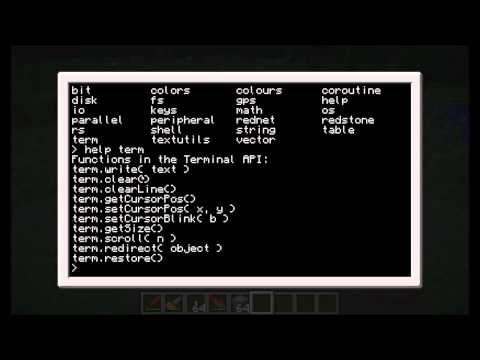
Hello everyone. This is Direwolf 20 and welcome to episode one of my ComputerCraft tutorial series. Uh, this series is pretty much going to be dedicated to teaching you guys how to do some pretty straightforward and somewhat basic things with computers, but also giving you some in-depth insights into how to program these computers in ComputerCraft and how to write some cool code that does some neat things. So, if you're interested in playing around with ComputerCraft, but it's a little intimidating because you don't know how to program and you don't know how to do coding, then hopefully this tutorial series will be for you. Um, it should hopefully be somewhat entertaining and educational and uh I'm hoping that you guys enjoy it. So, without further ado, let's get into the very basic steps of ComputerCraft. This is episode one and I've titled it help and hello world. Let's get started. So the very basic parts of computer craft will follow for episode 1 starting now. All right. The very most important thing to do to start playing with computer craft is to craft for yourself a computer. Very simple. Just need a uh glass pane, some redstone, and some smooth stone, and you'll get your very first computer. Hey there, little buddy. How's it going? Simply place this in the world. And you'll notice that right now it's got a blank interface. This means the computer is not running at the moment. However, if you right click on it, it'll automatically boot up. And when we close this interface, you'll see that now it's got this neat little cursor going with a little blinking thing, meaning this computer is ready to accept commands. So, the computer's on and running and ready to start messing around. Pretty simple, pretty straightforward. Now, I told you guys that the title of this episode is entitled help and hello world. So, the very first thing we're going to do is explain the help system within computer. ComputerCraft has an extremely extensive help system in which you can see all the features of it pretty much from within game. You shouldn't really need to jump out and do other things outside of the game if you don't want to. However, there is a very extensive wiki and there's a very good forum where a bunch of uh coders have posted some code and some other cool stuff that they've written that you can download and go ahead and start playing with. So, if you're really struggling to get your code to work, you can go to the forums and ask for help or just grab some code that someone else wrote and posted and use it. It's pretty cool. So, let's go through the help system right now. As you can see, the first things you can do is type programs. Now, programs on a computer are uh programs that have been written. Typically, built-in programs are ones that were written by um Dan 200 or other people on the ComputerCraft team. And there's some basic ones already on here, such as changing directories and um you know, deleting files and copying files and doing all kinds of other stuff. So, a lot of these programs are pre-written, and I'll go into some of these in the future. Um but I'm not going to go into too many of them. Uh they're pretty much pre-written programs that come with the computer. Pretty cool. You can also type help and then a program name to see specific help for that. So, if we want to type help and then uh type a program name, for example, let's choose um red pulse. You can get the information on what the red pulse program does. It tells you that it outputs a pulsating redstone signal from a specific side of the computer. And we'll get into some more details of that in the future, but this is just to demonstrate for you how the help system works. Uh you can type something like help reboot, and reboot will turn the computer off and on again. You can also hold the control and R key at any time to do it quickly. So by holding controlR or typing reboot, the computer will shut down and then come back up. Pretty cool. You can also type help programming and as it tells you, it'll give you some information about programming. It'll show you where you can go visit the lua users.org which is a tutorial on Lua, a good place to get some information outside of these videos. And it tells you if you want to experiment with Lua and Craft OS, just run the Lua program and start typing code. And that's just a built-in little code testing ground to start messing around. Um, it tells you if you want to create programs to use the edit command to create files and then type their name in the shell to run them. If you name a program startup and place it in the root on the drive, it will run automatically when the computer starts. And we'll get into some more of that in a moment. Other hotkeys include pressingt control t for a second uh to terminate a program. Uh pressing control s for a second will shut down a computer and controlr will reboot it as we already saw. Um to learn about the programming APIs available type APIs or help APIs and you can also visit the computercraft.info website for other information. Cool. Uh you can also type help what's new to see what is new in the system some credits and the index of all topics to do uh for here. So we can hit help index and see everything that you can type to get all the help for what's available. Now I've mentioned that the programs command will list all the programs available. The APIs command which you can see right here is going to show you all the APIs available. You can also type help APIs and it'll tell you that it currently lists all the loaded APIs available to program in Craft OS. If we type APIs by itself, it'll list all the APIs. Now, what is an API? Basically, these are the types of things. These are the um the the commands that you write inside your programming language to create your own programs. As I mentioned earlier, most computers will come with some built-in programs, but the real joy of ComputerCraft is writing your own. And to write your own programs, you're going to need to use an API. Um, you can check these APIs that are available. The math API, for example, deals with math functions. Um, the OS deals with the operating system, like shutting it down. Uh, Redstone deals with emitting Redstone signals, that kind of stuff. So, there's lots of APIs to learn, and we'll go through hopefully a lot of these throughout the tutorial series. Um, obviously this tutorial was only being focused on the help and writing a simple program that I'm going to show you guys coming up now. So, this pretty much shows you all the uh basic help functions. You can see I just typed clear to clear the screen. Makes it nice and easy. So, a good way to get started is familiarizing yourself with some of the basic functions of a computer by messing around in help. Now, let's move on to writing some pretty simple code. Anyone who's ever taken a programming course might be familiar with Hello World. It's typically the very first computer program that you're going to write. And we're going to write one right now using this computer craft computer. And if you'd like to follow along, it might not be a bad idea. Simply to write a program, you can type um edit and then the name of the program that you'd like to edit. And you can create a new program by doing the same thing. But before we do that, let's talk about the file structure within computer by typing diir. You can see right now there is no programs available here. The only thing that does exist is a folder called ROM. And inside the ROM is the folders for APIs and programs and help. And you're not going to want to mess with those too much. In fact, you'll get an error message if you try to modify them. But there is a way to modify them, which I'll get into again in a future video. Let's now clear the screen and type edit hello world. Cool. You can see that we're now in an editor and we have a little blinking cursor up here to indicate the position on the text editor of the screen. We can move up and down using the cursor keys and hit enter to scroll down a bit and move up and down and we can type. Now, of course, we're editing a program and the things I just typed right there will not run as a program. So, let's start looking into how to actually write a program. Um, but before I do that, I want to show you also that the line number, which you might want to pay attention to down here on the bottom right, indicates the current line that your cursor is on. This is going to be very useful for when you're debugging programs in the future. You can also, as it tells you at the bottom, press the control key on your keyboard to access the menu. And you have two options, to save the program as it currently exists, or to exit without saving. So, if we hit save, you can see it saved hello world. Now when we exit the program and type diir we can see a list of programs available in this current folder. The ROM folder still exists and the hello world program is there. Now if we type edit hello world again we'll get back into the program that we had started writing before. And we can type uh hello everyone. Save and exit. And now when we go back to edit hello world you can see the hello everyone is still there. So pretty simple and straightforward. If you want, you can delete hello world and that'll get rid of it. But once you do that, it's gone for good. Let's not do that right now. But let's go back into editing Hello World and give it a try. Now, let's get this program to actually work and do something. We're going to write the most basic program you can, the Hello World program. In order to have this work, we have to use one of the very first commands we're going to learn. And let's check it out. Now I want to show you guys some of the terminal commands that are available. So if I look at the list of APIs, we can see one of the APIs is called term. And these are all the terminal commands that are available to write within computer craft. And if I do a help on term, we can see all these commands listed here. The term.right, term.clear, etc. Now let's put some of these APIs to use. I'm going to go ahead and edit hello world again. And I'm going to put in here the following command term.right. And you noticed that in the previous screen, you noticed that there were a um the words you want to write to the terminal were encased inside an open parenthesis and a closed parenthesis. This is pretty standard in ComputerCraft, and you'll get to see more of it in the future. Whenever you want to write some uh strings or some messages out to a screen, more often than not, you're going to have to encapsulate them in a quote, as you can see here. So, I'm going to type hello world with an exclamation point and then close the quotes right here. So, this quote says that anything following this is going to be written to the screen. And this close quote means okay, I'm done. Stop interpreting the words and start running it as a program again. And we'll get again more into that in a future episode. For now, I can save the program and exit. If I want, I can try running my program by typing hello world. And hooray, it said hello world. How cool is that? Now my cursor has been returned to the current position. You can see that it starts right after the exclamation point. Let's clear the screen and edit hello world again. Now I'm going to use another function which is called print instead of term.right. And you can see here when I do print hello world save and exit. Now when I run the hello world program, it's going to send the hello world message out and then it's going to put a carriage return at the end and drop the cursor to the next line. So, these are two different ways to write out messages to the screen. By doing term.right, it's going to put exactly what I put on the uh inside the quotes on the screen, and it's going to do nothing more. But if I do a print, it's basically the same thing as doing a term. But then having a carriage return at the end and dropping the cursor to the next line. Um, if I run hello world again, it's going to do the exact same thing. And every time I run hello world, it's going to keep doing that. Now, just to get a little bit more fancy before we uh finish up this video, I'm going to edit the Hello World program and I'm going to show you guys the term.clear command. And what that'll do is it'll clear the screen before writing hello world. Now, it's important what order you put your code in in a program. And again, this tutorial is meant for beginners to programming. So, let's run hello world. Now, note that it cleared the screen and it put hello world on there. Now, if I run it again, it's going to clear the screen and put it one line lower. The reason for that is because the cursor position is maintained when you're messing around with computer craft. So, the cursor is right now on this line where my arrow is. When I run hello world, it's going to place the hello world command down on this line where my cursor currently is. See another option we can do is to put a term set cursor posos which stands for position and then you can give it an x and y coordinate on the screen. You can tell it at what position on the screen to place the cursor before writing hello world. Let's save and exit this again. Now, when I write hello world, it's going to put it at the top of the screen. And every time I run it, it's going to execute the code and always put it at the top of the screen because the first thing it does is clear whatever's on the screen. Then it sets the cursor position to one, one, which is the top left, and then it prints hello world. And we've written our very first program. This program can be executed. You can copy it to a disc and share it with your friends. It's not a very exciting program, I understand, but this is to introduce you to programming. Hopefully, you were able to follow along. And if you weren't, just start over and give it another try. You'll pick it up. It's pretty straightforward once you start messing around. Now, important note here is to make sure you put your code in the correct order. If we were to do a term.clear after we print hello world, it's going to print hello world and then clear the screen immediately. Let's see what happens. Note that the screen has been cleared. So it's printing hello world and then clearing the screen. So it's very important that you put your code in the order that you want things to execute. We want to clear first and then print hello world. Perfect. And this wraps up episode one of the computer craft tutorial series by Direwolf 20. Hopefully you guys have learned some basic steps in creating a program, how to use these computers, and the functionality and the foundation of computer craft. Future episodes will get more in-depth and we'll start learning at a pretty faster pace. This was really just to introduce you. So hopefully you guys were able to follow along. Please leave some comments about um how you enjoyed the video. Too fast, too slow, um and if you were, you know, enjoyed it. So uh hope you guys had a good time. This is Direwolf 20 signing off on ComputerCraft Tutorial episode 1. help and hello world. Thanks guys and take it easy.
- from
- ComputerCraft
- added
- 2026-10-10
- likes
- 0
similar
-
-
The FTB Wiki's Getting Started guide for ComputerCraft ftb.fandom.com
A useful all-around resource for getting started.
-
-
Nicholas Dingle's Tutorials youtube.com
Number of tutorials covering different games you can create and different tricks.
-
Kha Tutorial Series youtube.com
-
Shader Tutorial Series youtube.com
ComputerCraft › Literature > Tutorials > Basics: “A series of videos explaining the basics of ComputerCraft programming.”